Ports, Connectors and Cables
The connectors on the outside of a computer: USB generations and USB-C, Thunderbolt, video ports, and the adapters between them.
The ports on a typical computer
The rear panel of a desktop, and the sides of a laptop, show a row of connectors. Identifying them by shape is a daily task at a help desk: "which cable do I need?" is one of the most common questions. The drawing shows the ports you meet most, each with the socket and the plug that fits it.
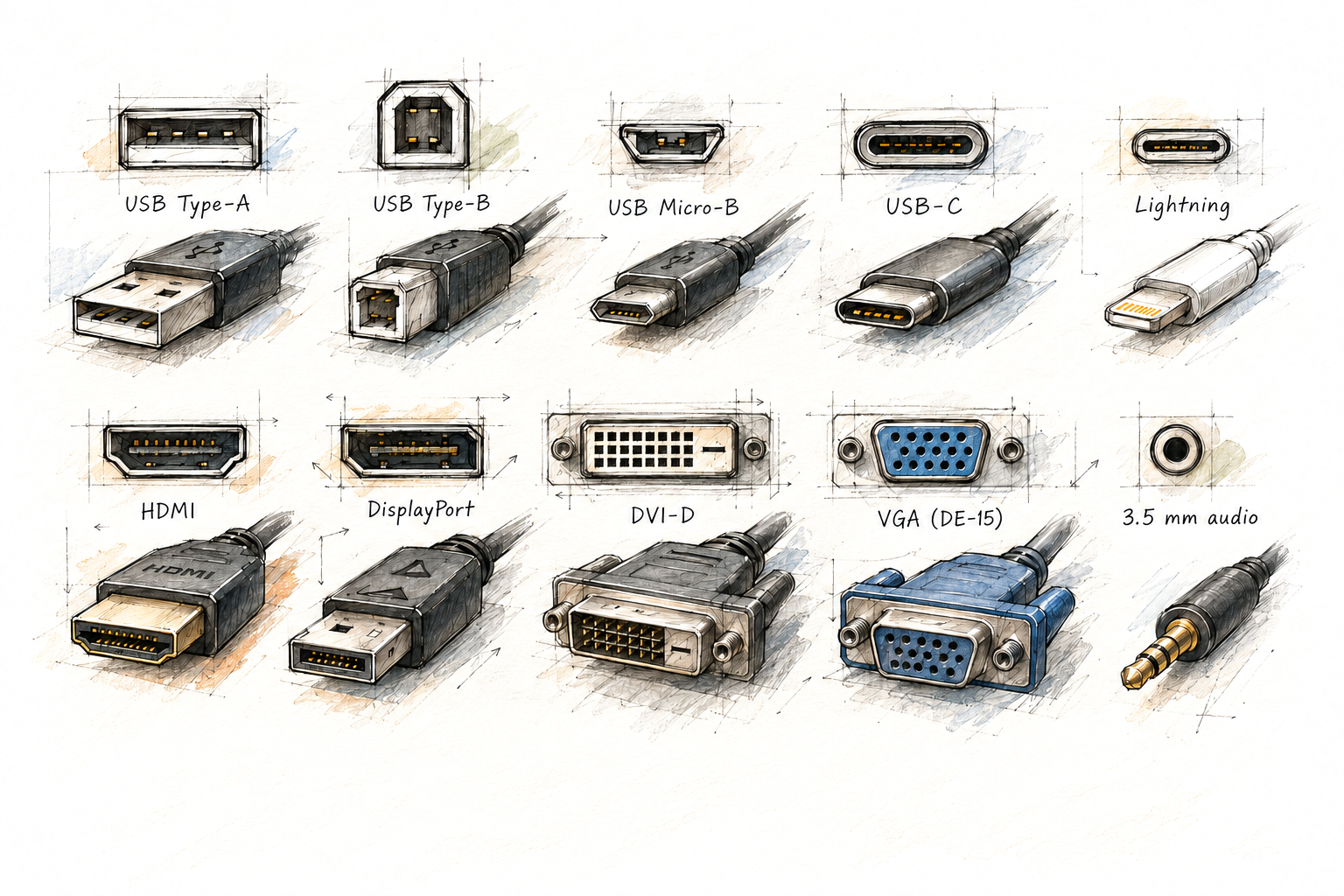
What you typically find:
- Desktop rear panel: several Universal Serial Bus (USB) Type-A ports (often some USB 2.0 for keyboard and mouse, some faster), one or two USB-C ports, an Ethernet port (registered jack 45, RJ45), audio jacks, video outputs from the processor's integrated graphics and, lower down on the expansion card brackets, the graphics card's DisplayPort and High-Definition Multimedia Interface (HDMI) outputs.
- Laptop: two to four USB-C ports (often also used for charging and video), perhaps one or two USB Type-A ports, an HDMI port, a combined headset jack, and on business models an Ethernet port. Thin laptops drop almost everything except USB-C, which is why docking stations exist (see Laptops and Mobile Devices).
USB
Universal Serial Bus (USB) is the standard connection for peripherals: keyboards, mice, drives, phones, printers, cameras and chargers. It is maintained by the USB Implementers Forum (USB-IF). USB is hot-pluggable (you can connect and disconnect devices while the computer runs), supplies power to the device, and lets the operating system identify the device and load its driver. One host controller can serve up to 127 devices through hubs.
To make sense of USB, keep two things apart: the connector (the physical shape) and the version (the protocol, which sets the speed). The confusion at many help desks comes from mixing the two.
USB connectors
- Type-A: the flat rectangular plug, on the computer (host) side of a classic cable. It fits one way only. Ports that support USB 3.x usually have a blue tongue inside, or an "SS" (SuperSpeed) logo, and extra contacts.
- Type-B: the square plug with beveled corners, on the device side: printers, scanners, some external drives. The USB 3.x version has an extra block on top.
- Mini-B and Micro-B: small device-side plugs from older cameras, phones and gadgets. Micro-B was the standard phone charger before USB-C. External hard drives often use the wide USB 3.x Micro-B plug, which is a Micro-B with an extra section at the side.
- USB-C: the small, symmetric plug that fits both ways, used at both ends of a cable. It is replacing all of the above.
USB versions and speeds
USB versions have been renamed several times, which is why the same 5 Gbit/s port can be labeled USB 3.0, USB 3.1 Gen 1 or USB 3.2 Gen 1. The speed is what counts; the table lists the names you will see on spec sheets. USB-IF now recommends that packaging simply states the speed, such as "USB 10Gbps".
| Version (current name) | Older or marketing names | Speed | Connectors |
|---|---|---|---|
| USB 1.1 | Low Speed, Full Speed | 1.5 and 12 Mbit/s | A, B |
| USB 2.0 | Hi-Speed | 480 Mbit/s | A, B, Mini-B, Micro-B, C |
| USB 3.2 Gen 1 | USB 3.0, USB 3.1 Gen 1, SuperSpeed, USB 5Gbps | 5 Gbit/s | A, B, Micro-B, C |
| USB 3.2 Gen 2 | USB 3.1 Gen 2, SuperSpeed+, USB 10Gbps | 10 Gbit/s | Mostly A and C |
| USB 3.2 Gen 2x2 | USB 20Gbps | 20 Gbit/s (two lanes of 10) | C only |
| USB4 | USB 20Gbps, USB 40Gbps | 20 or 40 Gbit/s | C only |
| USB4 Version 2.0 | USB 80Gbps | 80 Gbit/s | C only |
All versions are backward compatible: a USB 2.0 device works in a USB4 port, and a fast drive works in a USB 2.0 port. The link runs at the speed of the slowest part: the port, the cable or the device. A USB 2.0 cable's maximum length is 5 m; the faster versions need shorter cables, or active cables with electronics in them.
USB power and Power Delivery
Every USB port supplies 5 V. A standard USB 2.0 port provides 500 mA (2.5 W) and a USB 3.x port 900 mA (4.5 W), enough for a mouse or a flash drive but not for charging a laptop. USB-C ports can offer 1.5 A or 3 A at 5 V without negotiation.
USB Power Delivery (USB PD) goes much further. The charger and the device negotiate over the USB-C cable which voltage to use: 5, 9, 15 or 20 V, up to 100 W (20 V at 5 A). Since USB PD 3.1, Extended Power Range adds 28, 36 and 48 V, up to 240 W. Above 3 A the cable itself must be rated for 5 A; such cables carry a small chip (an electronic marker, "e-marker") that identifies them. This negotiation is why one USB-C charger can safely charge an earbud case, a phone and a laptop: nothing gets more than 5 V until both ends agree.
USB-C is a connector, not a speed
USB-C (USB Type-C) is a 24-pin, reversible connector that fits both ways up and is the same at both ends of the cable. It only describes the shape. Behind a USB-C port can be anything from USB 2.0 at 480 Mbit/s to USB4 at 80 Gbit/s, with or without video output and with or without charging. The cable matters too: many cheap USB-C cables that come with phones are USB 2.0 only.
USB-C can also carry other protocols in Alternate Mode (Alt Mode), in which some of its wires are handed over to a different signal. The most common is DisplayPort Alt Mode, which is how a laptop drives a monitor through a USB-C cable or a USB-C-to-HDMI adapter. The small logos next to a port tell you what it supports: a "D" shaped DisplayPort logo for video, a lightning bolt for Thunderbolt, a battery or plug icon for charging.
Speeds in practice: Mbit/s versus MB/s
Link speeds are given in bits per second (Mbit/s, Gbit/s); file sizes and copy dialogs use bytes (MB, GB). A byte is 8 bits, so divide by 8. The example estimates how long a 25 GB folder takes to copy at the line rate of each USB version:
def mbit_to_mbyte(mbit_per_s):
    """Megabits per second to megabytes per second: 8 bits per byte."""
    return mbit_per_s / 8


file_mb = 25_000                      # a 25 GB video folder (1 GB = 1000 MB)

versions = [
    ("USB 2.0", 480),
    ("USB 3.2 Gen 1", 5_000),
    ("USB 3.2 Gen 2", 10_000),
    ("USB 3.2 Gen 2x2", 20_000),
    ("USB4 40Gbps", 40_000),
]

for name, mbit in versions:
    mb_per_s = mbit_to_mbyte(mbit)
    seconds = round(file_mb / mb_per_s)
    minutes, seconds = divmod(seconds, 60)
    print(f"{name:<16} {mb_per_s:7.0f} MB/s  {minutes:2d} min {seconds:02d} s")

gen1 = mbit_to_mbyte(5_000 * 8 / 10)  # 8b/10b: 8 data bits in every 10
print(f"USB 3.2 Gen 1 after 8b/10b encoding: {gen1:.0f} MB/s")
USB 2.0 60 MB/s 6 min 57 s USB 3.2 Gen 1 625 MB/s 0 min 40 s USB 3.2 Gen 2 1250 MB/s 0 min 20 s USB 3.2 Gen 2x2 2500 MB/s 0 min 10 s USB4 40Gbps 5000 MB/s 0 min 05 s USB 3.2 Gen 1 after 8b/10b encoding: 500 MB/s
These are theoretical best cases. Real copies are slower: USB 3.2 Gen 1 uses 8b/10b encoding (the last line: only 500 MB/s of the 625 is data), Gen 2 uses the more efficient 128b/132b, and protocol overhead takes more on top. A USB 2.0 copy in practice runs at about 35 to 40 MB/s. Very often the drive, not the port, is the limit: a hard drive manages roughly 100 to 250 MB/s, so it gains nothing from a 10 Gbit/s port.
Checking the negotiated speed
A fast drive plugged into a slow port, or connected with a USB 2.0
cable, works but crawls. On Linux, lsusb -t shows the
USB tree with the speed each device negotiated (illustrative
output):
lsusb -t/: Bus 02.Port 1: Dev 1, Class=root_hub, Driver=xhci_hcd/4p, 10000M
|__ Port 2: Dev 2, If 0, Class=Mass Storage, Driver=uas, 5000M
/: Bus 01.Port 1: Dev 1, Class=root_hub, Driver=xhci_hcd/12p, 480M
|__ Port 3: Dev 3, If 0, Class=Human Interface Device, Driver=usbhid, 12M
|__ Port 7: Dev 5, If 0, Class=Mass Storage, Driver=usb-storage, 480M
Read the number at the end of each line: 5000M is a
drive running at 5 Gbit/s; 12M is a keyboard, which
needs no more; the second drive at 480M is running at
USB 2.0 speed. If that drive is a USB 3.x model, move it to a faster
port or replace the cable. On Windows, Device Manager (view "Devices
by connection") shows the same tree without speeds; the drive's copy
speed in Explorer is the quick practical check.
Thunderbolt
Thunderbolt is a high-speed connection developed by Intel (with Apple) that carries PCI Express data, DisplayPort video and USB over one cable, and can daisy-chain several devices. Because it carries PCIe, a Thunderbolt device behaves almost like an internal card: external graphics card enclosures, fast storage and docking stations with many ports use it. Ports are marked with a lightning bolt symbol.
| Version | Speed | Connector | Notes |
|---|---|---|---|
| Thunderbolt 1 and 2 | 10 and 20 Gbit/s | Mini DisplayPort | Legacy, mostly on older Macs |
| Thunderbolt 3 | 40 Gbit/s | USB-C | Became the basis of USB4 |
| Thunderbolt 4 | 40 Gbit/s | USB-C | Same top speed, but stricter minimum requirements (for example two 4K displays); built on USB4 |
| Thunderbolt 5 | 80 Gbit/s (up to 120 Gbit/s one way) | USB-C | Built on USB4 Version 2.0 |
The relation with USB4 is close: Intel gave the Thunderbolt 3 protocol to the USB-IF, which used it as the foundation of USB4. A Thunderbolt 4 or 5 port is therefore also a full USB4 port, and most USB-C devices work in it. The reverse is not guaranteed: a Thunderbolt-only device, such as some docks, may not work in a plain USB-C port.
Video connectors
Video signals are either digital (the image travels as numbers, exactly, until the display shows it) or analog (the image travels as varying voltages that pick up noise and lose sharpness over distance). Flat-panel displays are digital inside, so an analog signal must be converted twice. Current connectors are all digital. See Displays for the screens themselves.
HDMI
High-Definition Multimedia Interface (HDMI) is a digital connector for video and audio in one cable, standard on TVs, projectors, monitors, game consoles and laptops. It also carries control signals, such as Consumer Electronics Control (CEC, one remote for several devices) and the audio return channel (ARC, sound from the TV back to a soundbar), and supports High-bandwidth Digital Content Protection (HDCP), the copy protection streaming services require.
- HDMI 1.4: up to 10.2 Gbit/s, 4K at 30 Hz.
- HDMI 2.0: up to 18 Gbit/s, 4K at 60 Hz.
- HDMI 2.1: up to 48 Gbit/s, 4K at 120 Hz and 8K, variable refresh rate and enhanced ARC (eARC); needs an "Ultra High Speed" cable for full speed. HDMI 2.2, announced in 2025, doubles the rate to 96 Gbit/s.
Besides the standard plug (Type A) there are Mini HDMI (Type C) and Micro HDMI (Type D) on cameras and small boards. Note that HDMI "Type C" has nothing to do with USB-C.
DisplayPort and Mini DisplayPort
DisplayPort (DP) is a digital video and audio connector from the Video Electronics Standards Association (VESA), common on computer monitors and graphics cards. The full-size plug has one beveled corner and usually a latch you must press to pull it out. Mini DisplayPort, a smaller version, was used on older laptops and Macs.
- DisplayPort 1.2: 21.6 Gbit/s; introduced Multi-Stream Transport (MST), which lets one port drive several monitors in a daisy chain.
- DisplayPort 1.4: 32.4 Gbit/s.
- DisplayPort 2.0 and 2.1: up to 80 Gbit/s with certified cables.
DisplayPort is also the video signal that travels through USB-C (Alt Mode) and Thunderbolt, so it is the most common video connection on laptops today, even when you never see a DisplayPort plug.
DVI and VGA (legacy)
Digital Visual Interface (DVI) was the bridge between analog and digital. It comes in three kinds: DVI-D (digital only), DVI-A (analog only, rare) and DVI-I (integrated: both). You can tell them apart by the pins around the flat blade: DVI-I and DVI-A have four extra pins there for the analog signal. Single-link DVI reaches 1920 × 1200 at 60 Hz; dual-link DVI, with a full grid of pins, reaches 2560 × 1600. DVI carries no audio on most equipment.
Video Graphics Array (VGA) is the analog video connector: a blue, 15-pin D-shaped plug with three rows of pins (DE-15, often called DB-15) and two thumbscrews. It carries video only, no audio. The image gets softer at higher resolutions and over long cables, and flat panels have to convert it back to digital. VGA still appears on older projectors and in server rooms (on servers and on keyboard, video and mouse (KVM) switches), but it is legacy.
Audio, storage and other connectors
Audio jacks
Analog audio uses 3.5 mm jacks. Desktops follow a color code from the PC 99 guidelines: green for line out (speakers or headphones), pink for the microphone, and light blue for line in. Surround-sound boards add more (orange, black, gray). Laptops and phones usually have one combined headset jack: its plug has four contacts (tip, ring, ring, sleeve: TRRS) instead of three (TRS), for stereo out and a microphone in. Digital audio can leave through an optical Sony/Philips Digital Interface (S/PDIF, TOSLINK) port, or simply through HDMI or USB.
SATA and eSATA
Inside the case, drives connect with Serial ATA (SATA) cables: a thin 7-pin, L-shaped data cable to the motherboard and a wider 15-pin power connector from the power supply. The L shape means it only fits one way. eSATA was an external version with a shielded connector and no power; it has been replaced by USB 3.x and Thunderbolt. See Storage.
Lightning
The Lightning connector is Apple's 8-pin, reversible connector for charging and data, introduced in 2012 on the iPhone 5. It is legacy: from the iPhone 15 (2023), iPhones use USB-C, as iPads had done earlier, partly because the European Union requires USB-C charging on phones. You will still meet Lightning on older iPhones, AirPods cases and accessories. Most Lightning devices transfer data at USB 2.0 speed.
Other legacy ports
Two older ports still turn up: the serial port, a 9-pin D-shaped connector (DE-9, often called DB-9) using the RS-232 standard, still used for console cables to network equipment and for industrial devices; and the round, 6-pin mini-DIN PS/2 port for keyboard (purple) and mouse (green). The Ethernet port (RJ45) is covered in Cabling and the Physical Layer.
Adapters and converters
An adapter only changes the shape when both sides use the same signal; a converter changes the signal itself and needs electronics (and sometimes power). The difference decides whether a cheap adapter works.
- DVI-D to HDMI: passive. Both use the same kind of digital video signal, so only the shape changes (audio usually does not pass).
- DisplayPort to HDMI: passive only if the DisplayPort output is dual-mode (marked DP++), which can send an HDMI-compatible signal itself. Otherwise, and for 4K at 60 Hz or more, use an active adapter.
- USB-C to HDMI or DisplayPort: works only when the USB-C port supports DisplayPort Alt Mode (or Thunderbolt); the USB-C-to-HDMI adapter contains a small converter.
- HDMI or DisplayPort to VGA: always an active converter, because digital must become analog. VGA to HDMI is also active, and usually powered by USB.
- USB-C to USB Type-A (or the reverse): a simple adapter or cable; the speed is that of the slowest side.
Comparison table
| Connector | Carries | Typical maximum | Notes |
|---|---|---|---|
| USB Type-A | Data, power (5 V) | USB 2.0 to USB 3.2 Gen 2 (10 Gbit/s) | Host side; one way up |
| USB Type-B / Micro-B | Data, power | USB 2.0 or USB 3.2 Gen 1 | Device side: printers, older phones, drives |
| USB-C | Data, power (up to 240 W), video (Alt Mode) | 80 Gbit/s (USB4 Version 2.0) | Reversible; capability depends on port and cable |
| Thunderbolt 3/4/5 | PCIe, DisplayPort, USB, power | 40 or 80 Gbit/s | USB-C connector, lightning bolt logo |
| HDMI | Digital video, audio, CEC | 48 Gbit/s (HDMI 2.1) | TVs, projectors, monitors |
| DisplayPort / Mini DP | Digital video, audio | 80 Gbit/s (DP 2.1) | Latch; MST daisy chain; also inside USB-C |
| DVI | Digital (DVI-D), analog (DVI-A) or both (DVI-I) video | 2560 × 1600 (dual link) | Legacy; passive adapter to HDMI |
| VGA (DE-15) | Analog video only | Quality drops at high resolutions | Legacy; blue, 15 pins in 3 rows, thumbscrews |
| 3.5 mm audio | Analog audio | — | Green out, pink mic, blue in; TRRS headset jack |
| SATA | Drive data (7-pin), power (15-pin) | 6 Gbit/s | Internal; L-shaped key |
| Lightning | Data, power | USB 2.0 speed (most devices) | Legacy Apple, 8-pin, reversible |